Tails OS review — the amnesic operating system
Who is this for? Journalists, whistleblowers and activists who must leave no trace on a specific computer. Not suitable for daily use — Tails is a tool for specific situations, not an everyday operating system.
Tails OS review
Who is this for? Journalists, whistleblowers and activists who must leave no trace on a specific computer. Not suitable for daily use — Tails is a tool for specific situations, not an everyday operating system.
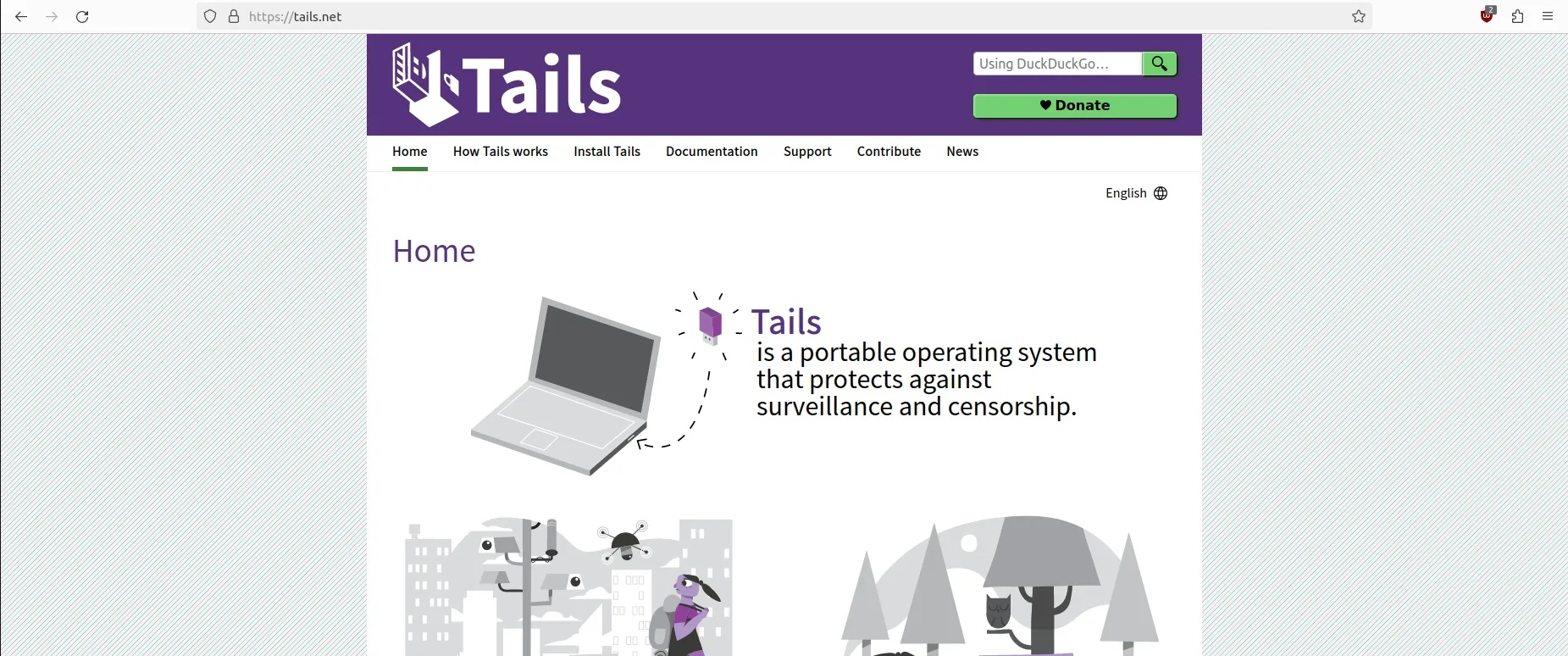
Tails (The Amnesic Incognito Live System) is an operating system you run from a USB drive. It leaves no trace on the computer you use it on — no browsing history, no files, no session information. Everything disappears when you remove the USB.
What Tails does
Amnesic: Tails saves nothing by default. Every time you boot you start with a clean slate. Files, settings and browsing history disappear on shutdown. Optionally you can set up “Persistent Storage” for specific files — but that is a conscious choice, not a default.
Tor for all traffic: Every internet connection from Tails automatically goes through the Tor network. No application can bypass this — if Tor is not available, no traffic passes. Your IP address is hidden from all websites and services you visit.
Runs on any x86 computer: Nothing to install. Boot the computer from the USB drive, Tails loads into RAM, and you have a fully isolated environment.
Specifications
| Property | Value |
|---|---|
| Base | Debian GNU/Linux |
| Routing | Tor (100% of traffic) |
| Storage | None — everything in RAM |
| Persistent Storage | Optional — encrypted on USB |
| Built-in tools | Tor Browser, Thunderbird, Secrets, OnionShare, MAT2 |
| Hardware requirement | x86-64, 3 GB RAM for stable operation |
| USB size | Minimum 8 GB |
| Price | Free |
Built-in tools
Tails contains a selection of pre-configured privacy tools:
- Tor Browser: Fully configured, JavaScript manageable per security level
- Thunderbird with built-in OpenPGP: Email with encryption without the old Enigmail extension
- Secrets password manager: Password management inside Tails itself, with optional persistence
- OnionShare: Share files via Tor (receives via a .onion address)
- MAT2: Remove metadata from files (documents, images)
- Electrum Bitcoin Wallet: Bitcoin wallet without installation
Persistent Storage — when to use, when not
By default everything disappears. If you want to keep certain files (PGP keys, documents, Tor Browser settings), you can activate Persistent Storage. This is an encrypted partition on the USB drive itself.
Use Persistent Storage for:
- PGP keys
- Documents you need in every session
- Thunderbird email account configuration
Do NOT use Persistent Storage for:
- Files you want to delete after a session — those belong in the non-persistent environment
- Anything you consciously want to keep out of the trace
Who is Tails for?
Journalists and sources: Tails is the standard recommendation for source protection in sensitive communications. The Tails documentation mentions use by journalists worldwide.
Whistleblowers: A whistleblower wanting to leak documents via SecureDrop uses Tails on a computer not linked to them.
Activists in risk areas: Accessing censored information via Tor from an environment that leaves no trace on a shared or confiscated computer.
Communicating securely on untrusted hardware: If you must use a hotel or library computer, Tails gives you a known, clean environment regardless of what’s on the computer.
What Tails does NOT protect against
Physical observation: If someone is looking over your shoulder, Tails doesn’t help.
Hardware attacks: A manipulated computer (hardware keylogger, compromised BIOS) undermines Tails’ security. Only use Tails on hardware you trust or that you brought yourself.
Identity mistakes: If you log in to an account linked to your identity (Gmail, Facebook) while running Tails, you have identified yourself despite Tor.
Tor vulnerabilities: Tails is as secure as Tor. Traffic analysis, de-anonymisation attacks and end-node monitoring are theoretical risks for advanced adversaries.
Comparison with other approaches
| Tails | Whonix | GrapheneOS | VPN | |
|---|---|---|---|---|
| Traceless | Yes (amnesic) | No | No | No |
| Tor routing | Full | Full | Optional | No |
| Portable | Yes (USB) | No (VM) | Yes (phone) | Yes |
| Daily use | No | No | Yes | Yes |
| Difficulty | Low-medium | High | Medium | Low |
Pros and cons
Pros
- Amnesic by default — no browsing history, no files, no session data survive a reboot
- All traffic routes through Tor with no bypass possible — IP hidden from every website and service
- Runs from USB on any x86 computer — no installation, no modification of the host machine
- Pre-configured privacy tools built in: Tor Browser, Thunderbird, Secrets, OnionShare, MAT2
- Persistent Storage is opt-in and encrypted — sensitive data stays only if you choose to keep it
Cons
- Not suitable for daily use — everything via Tor is slow and restricts many sites
- Hardware attacks (keylogger, compromised BIOS) undermine Tails — only use on hardware you trust
- Logging into identity-linked accounts (Gmail, Facebook) defeats Tor anonymity regardless of OS
- Tor exit nodes see unencrypted traffic — HTTPS required; Tor provides IP anonymity, not content encryption
Conclusion
Tails is the right tool for specific situations: sensitive communication, source protection, accessing censored information without trace. It is not a daily operating system — for that it is too restrictive and too slow (everything via Tor).
Those wanting a privacy-friendly system for daily use look at GrapheneOS (phone) or Fedora/Linux Mint (desktop).
Getting started
1. Download and install Tails on a USB drive
Go to tails.boum.org and follow the official install guide for your operating system. The install page includes an integrated verification step to check the download. You need a USB drive of at least 8 GB.
2. Boot from the USB drive
Restart your computer and select the USB drive as the boot device (via the BIOS boot menu, usually F12 or F2). Tails loads into RAM — nothing is written to the computer’s hard drive.
3. Optional: set up Persistent Storage
If you want to keep PGP keys, documents or browser settings between sessions, go to Applications → Persistent Storage and enable what you want to keep. This is an encrypted partition on the USB drive itself.
Next step
Chosen Tails?
- PGP practical guide — encrypted communication from Tails using Thunderbird and OpenPGP
Similar options
- Whonix review — persistent Tor workspace as an alternative for long-term sensitive work
Want to go further?
- Journalist and activist profile — when Tails is proportionate